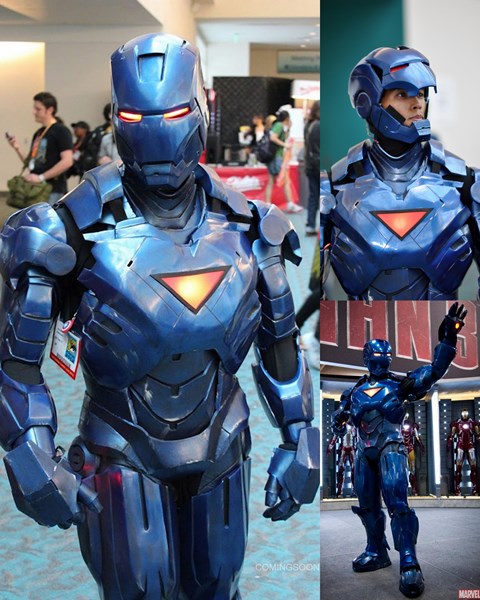
My Fiberglass/Foam Stealth Iron Man, Photos by comingsoon.net, Aaron Berkovich, and Nicole Ciaramella
Stage 1 – Form Paper Base

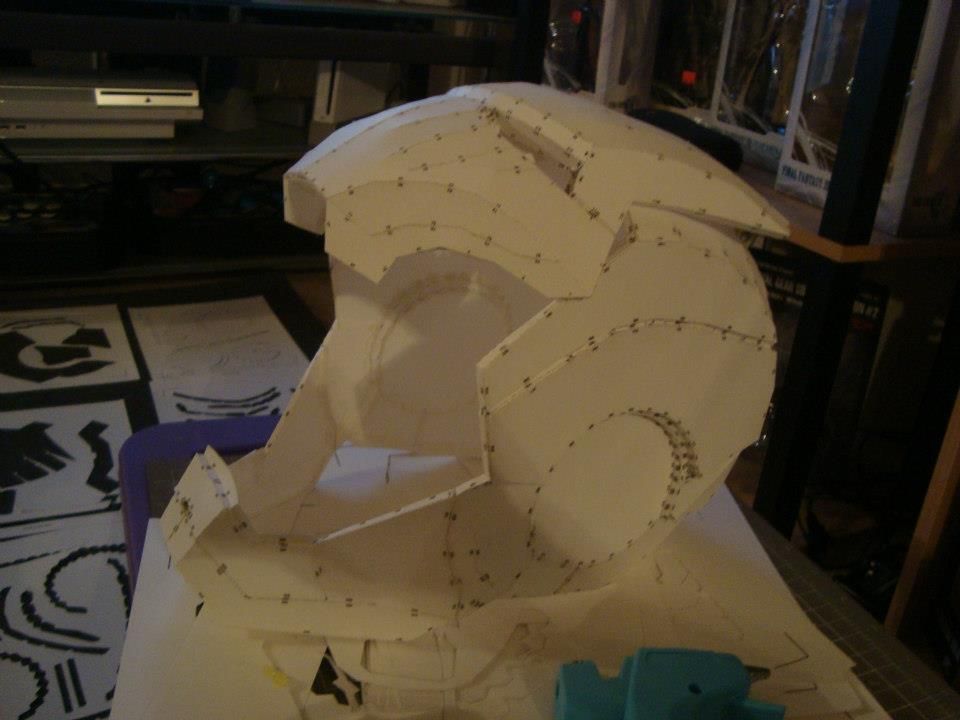
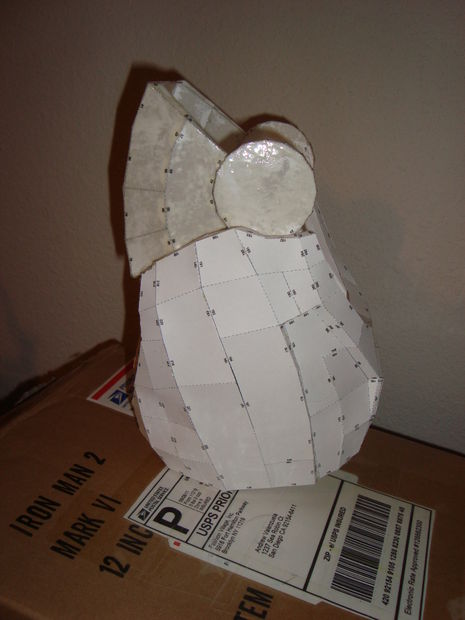
Pepakura Iron Man Helmet
Materials I used for this stage:
Steps:
- Find 3D model of the file you want to build. Google does wonders. The model I used for my Stealth Mk VI was made by robo3687. These 3D models will serve as a rough geometric base of what you are trying to build
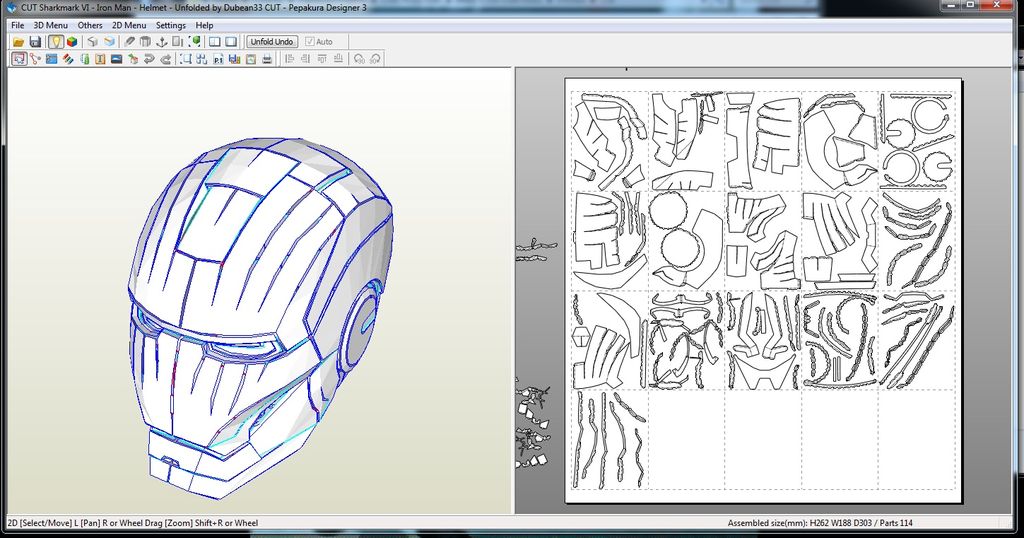
- Download required software to open and print your paper model. Software will show you how to glue pieces together to form the base shape of your model.
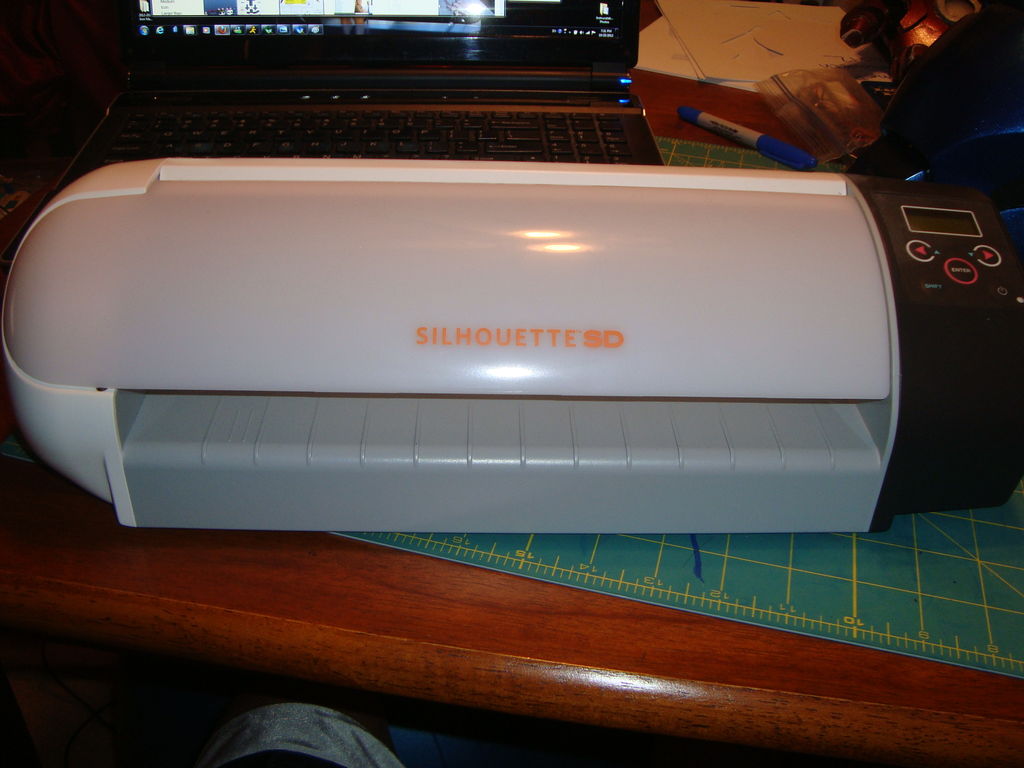
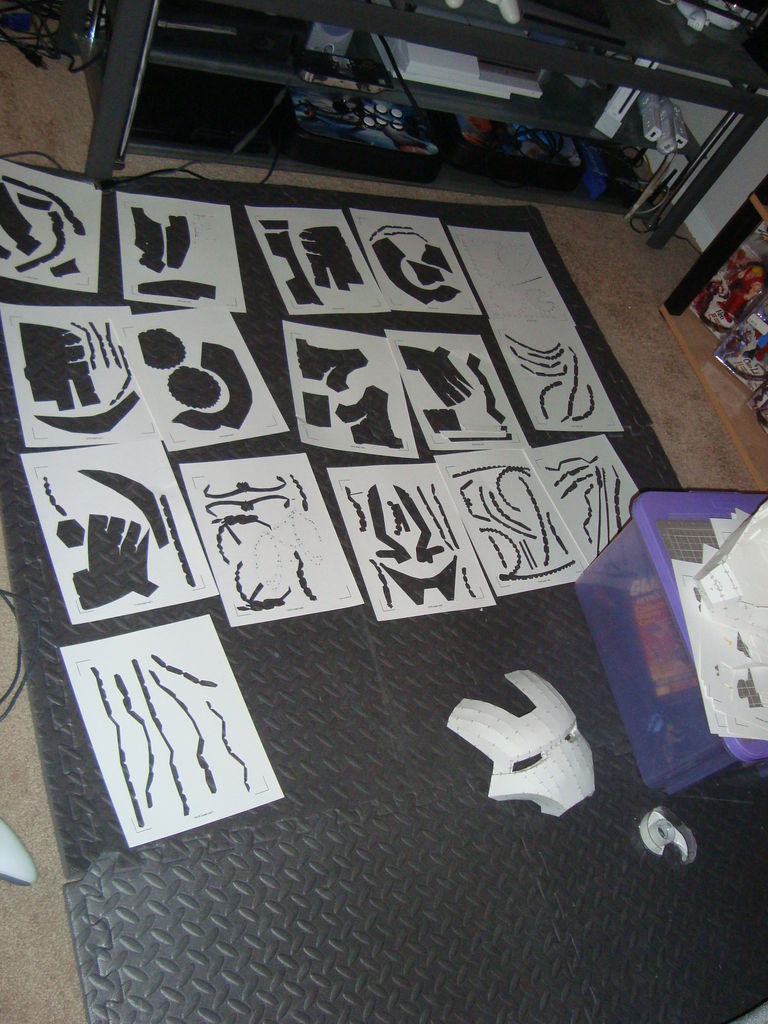
- Cut 3D model pieces with Craftrobo
- Use Pepkaura viewer to assist you in glue required tabs together
[caption id="attachment_43" align="alignnone" width="225"]
 Printed Pepakura Patterns for Iron Man Helmet[/caption]
---
Stage 2 – Harden Paper Base
[caption id="attachment_59" align="alignnone" width="717"]

Fiberglassing the back[/caption]
Materials I used for this stage:
Steps:
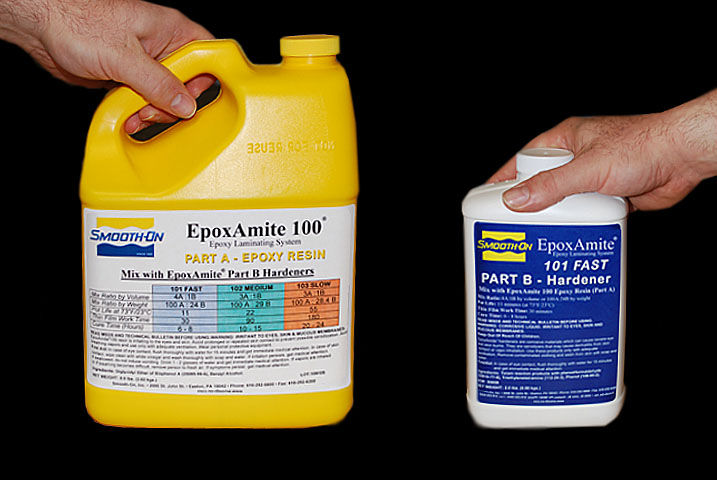
- Next, I hardened the paper base with EpoxAmite 100 (while wearing gloves and an organic vapor respirator) which is an epoxy resin that is mixed in 2 parts and applied with a chip brush. I prefer using this over polyester resin.
[caption id="attachment_60" align="alignnone" width="225"]
 Top - Resined Piece
Bottom - No resin piece[/caption]
- I let the resin on paper cure over night to be safe. Once cured, the paper will be a tad bit more stiff, but will require fiberglass reinforcement in order to increase durability. Cut strips of fiberglass cloth, and use the epoxy resin to wet out the area on the inside of each piece to where you will lay the cut pieces of cloth.
- I covered the entire surface area of the inside of each piece. Overlapping the outside of the piece is okay.
- Once the fiberglass cloth cures over night, I cleaned the stray edges with a dremel with a 60 grit sanding wheel.
---
Stage 3 – Shaping with Body Filler
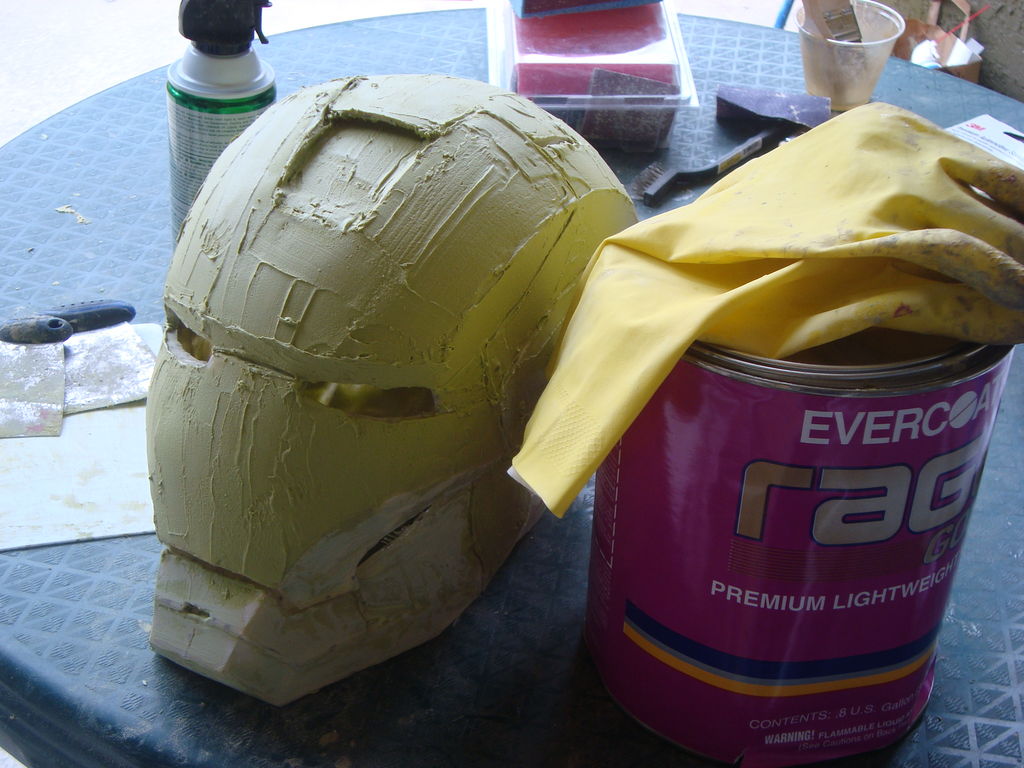
[caption id="attachment_61" align="alignnone" width="717"]

Automotive Body Filler on Fiberglassed Helmet[/caption]
Materials I used for this stage:
When the fiberglass stage is complete, you will have a strong piece but still geometric looking. Below is the basic process in a nutshell of how I shaped each piece and gave it more roundness.
Steps:
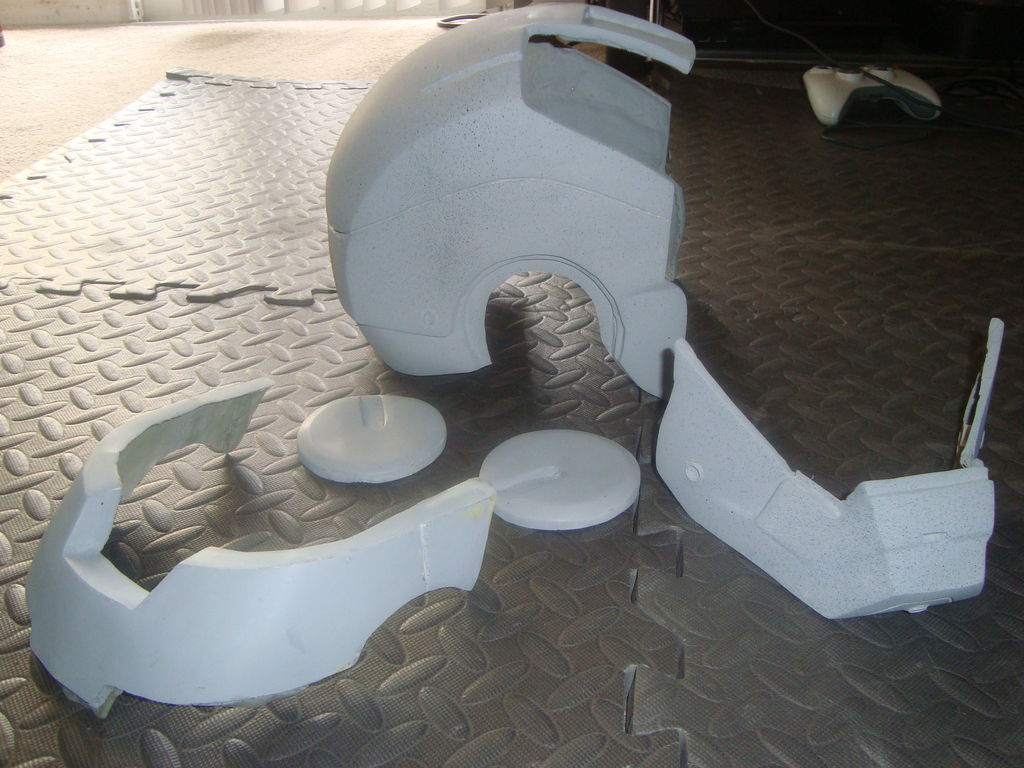
- Apply body filler
- Apply matte black spray paint dust coat (basically you spray your piece lightly with black paint as a guide coat when you sand... while your sanding, you'll know where your low spots are as they will be dark)
- 60 grit sanding
- Repeat 1-3 until shape is appropriate (I took careful attention to add body filler to the low spots first which will be obvious because of the matt black dust coat)
[caption id="attachment_62" align="alignnone" width="300"]
 Dark spots are portions that need sanding or more filler[/caption]
- Dust coat
- 180 grit sanding (this will smooth out the scratch marks from the 60 grit)
- Filler Primer (This will fill minor scratches and reveal further imperfections)
[caption id="attachment_65" align="alignnone" width="300"]
 Primed Helmet - Light Black Specks are from dust coat[/caption]
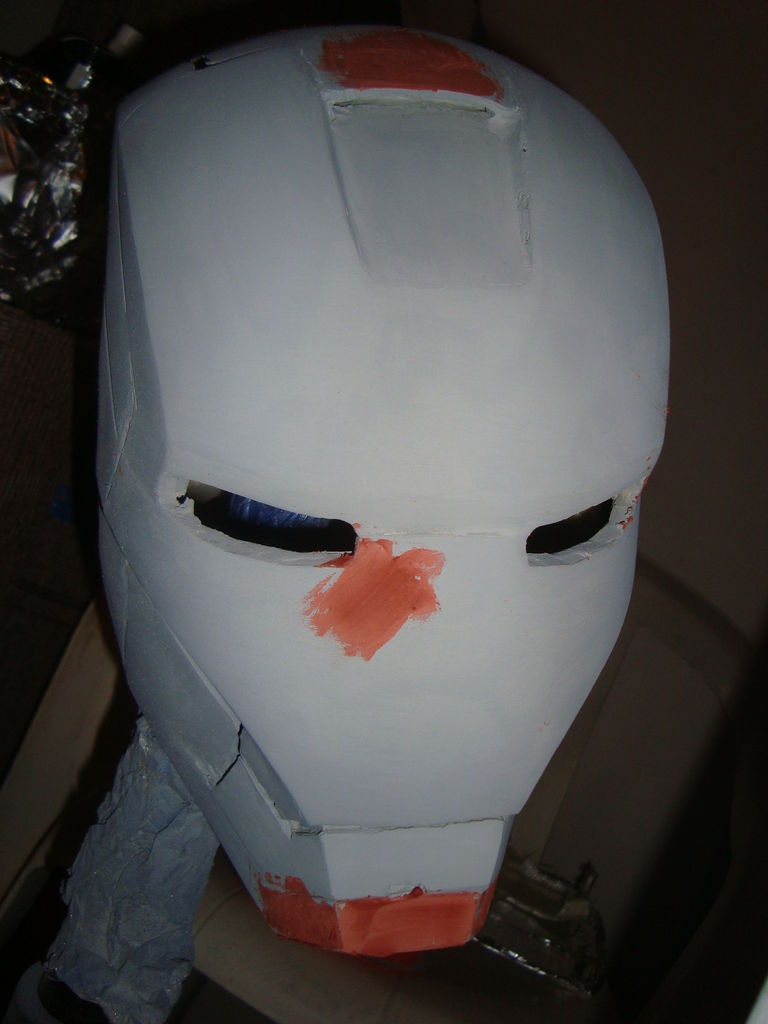
- Added detail lines with a needle file. These are lines that are not a part of the original 3D model that need to be etched in
- Use bondo spot putty to fill small imperfections on shape
[caption id="attachment_69" align="alignnone" width="225"]
 Red spot putty on imperfections[/caption]
- Dust coat
- 220 grit sanding
- Reprime to remove scratches
- Light Dust coat
- 400 wet sand
--------
Stage 4 - Painting and weathering stage
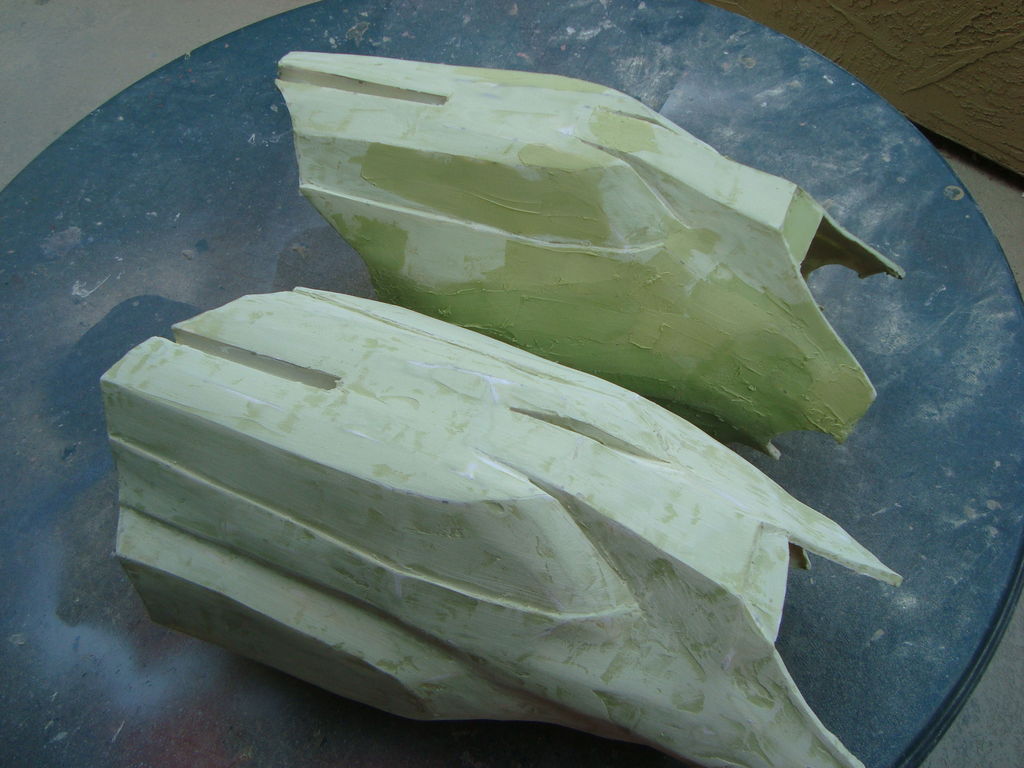
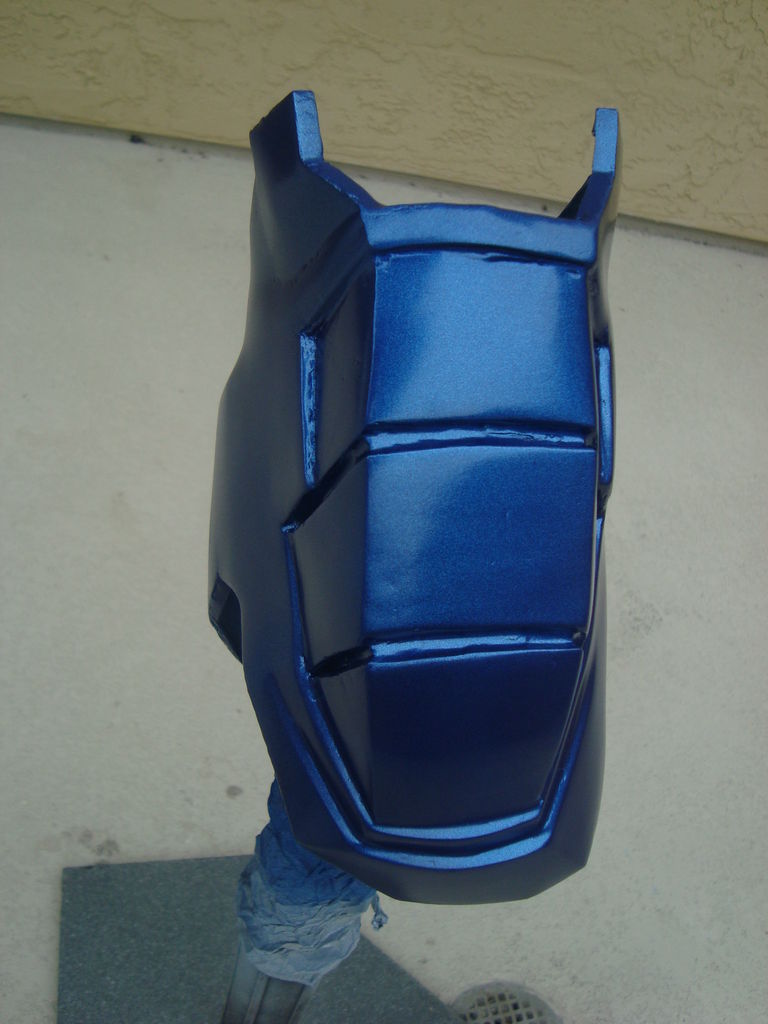
[caption id="attachment_74" align="alignnone" width="225"]

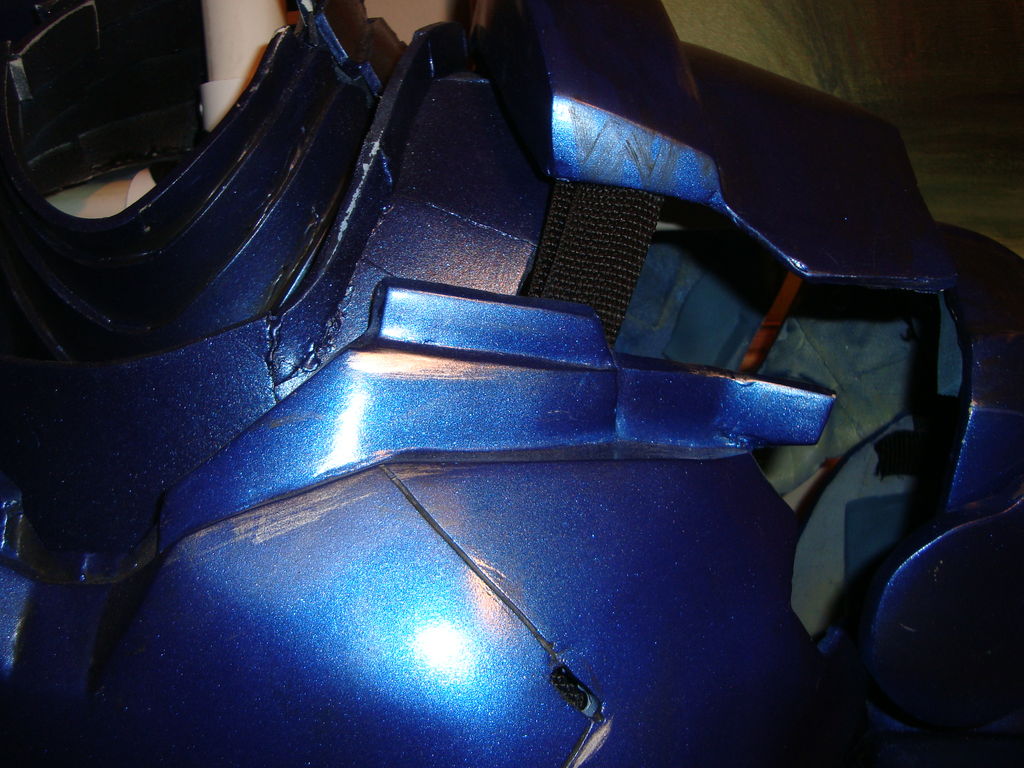
Painted bicep - No clear coat[/caption]
Materials I used:
Steps:
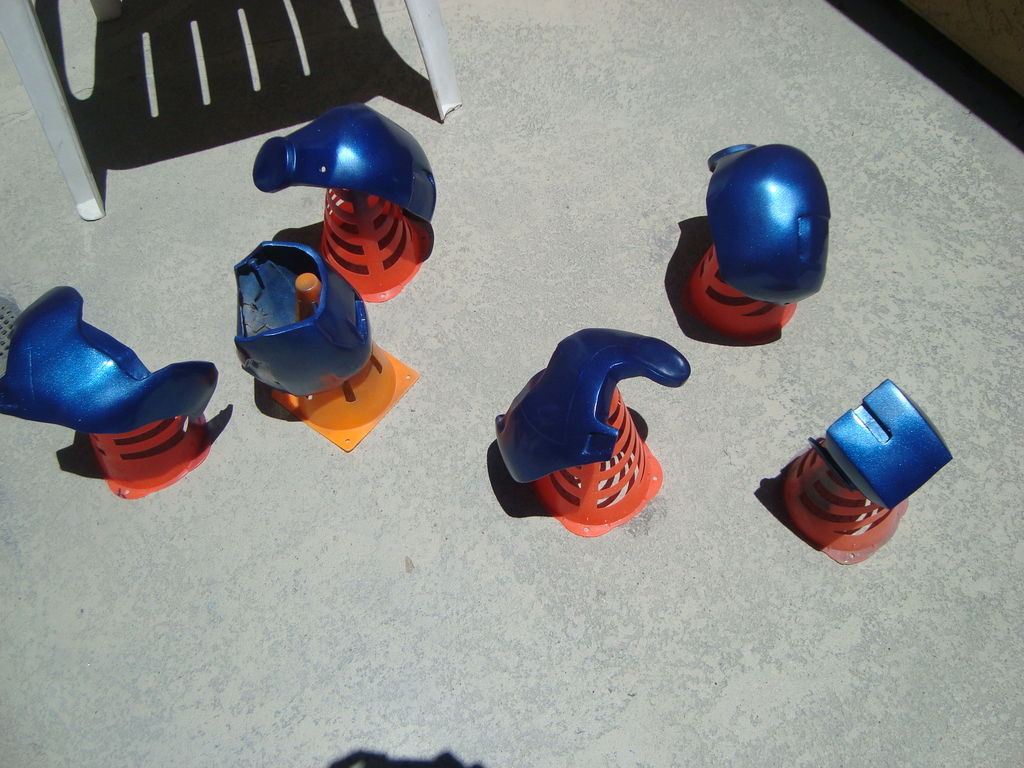
- After each piece was primed and wet sanded with 400 grit, the piece is ready to paint
- I applied 3 cost of spray paint, 10 minutes between coats
[caption id="attachment_64" align="alignnone" width="300"]
 Watching the paint dry[/caption]
- 30 minutes after the last coat of colored paint, I applied 3 coats of automotive clear to protect the paint and give it some extra shine
- The next day, I used a small detail brush and acrylic black paint to “dirty” up the armor. I would apply the acrylic paint, then wipe off the excess with a wet rag.
- The last part to give a damaged look is applying some Rub N Buff with a small detail brush and carefully rubbing off the excess to give a scratched metal effect
[caption id="attachment_67" align="alignnone" width="225"]
 Scuff marks (Rub N Buff) and black "dirt" (acrylic paint) applied[/caption]
---
Stage 5 - Flexible Pieces
[caption id="attachment_71" align="alignnone" width="717"]

Foam abs and obliques[/caption]
Materials I used:
Steps:
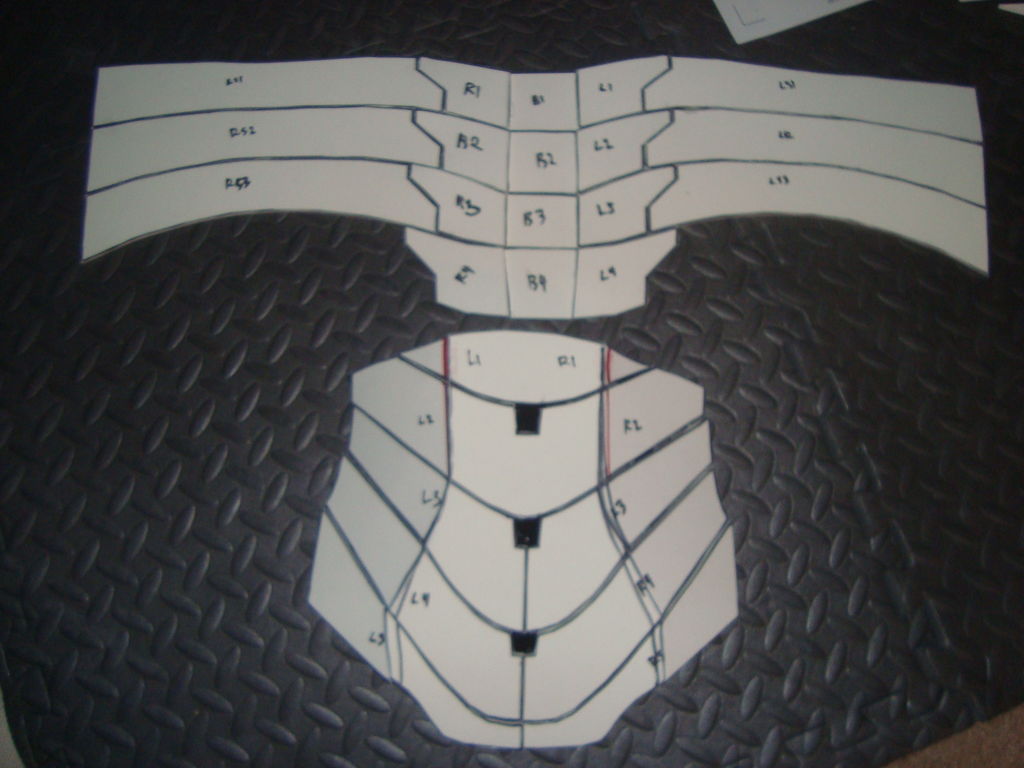
- I used form for pieces that I felt would need more flexibility. I used the foam method for the hands, abs, neck, and codpiece.
- You can google foam templates for various pieces which you will print and cut with Pepakura Viewer.
- Once I printed and cut the template, I traced onto my foam pieces.
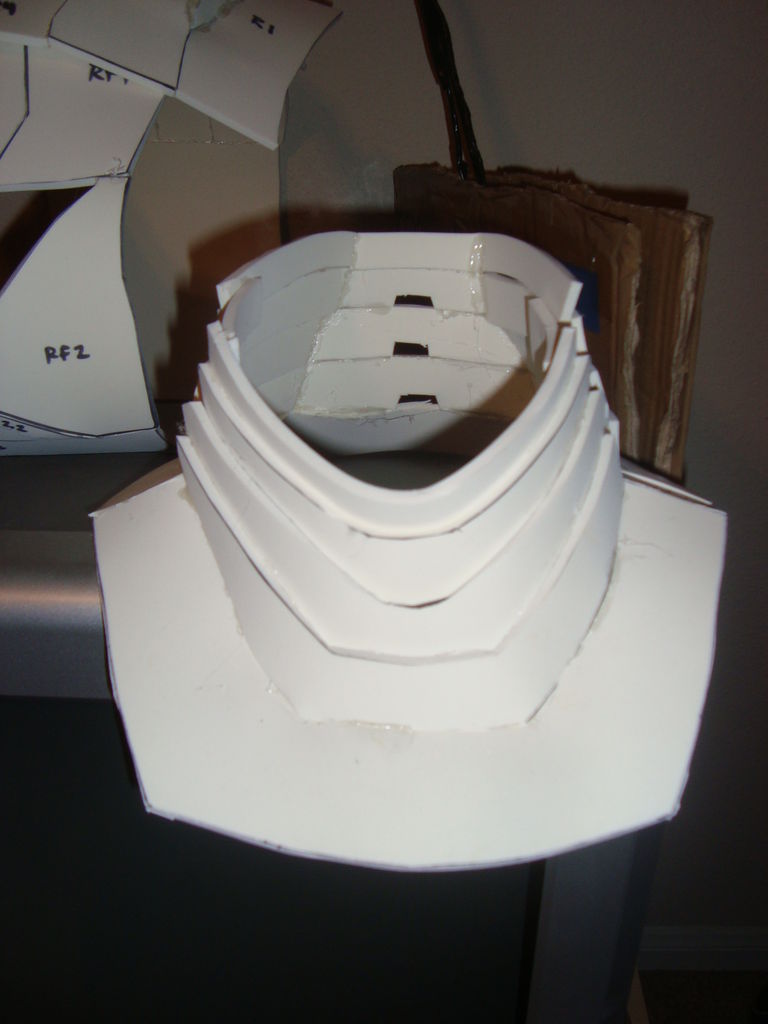
- Using references pictures of the part I was trying to build, I varied the angle of cuts in order to get the appropriate shape for when the piece is glued together.
[caption id="attachment_72" align="alignnone" width="225"]
 Foam Neck[/caption]
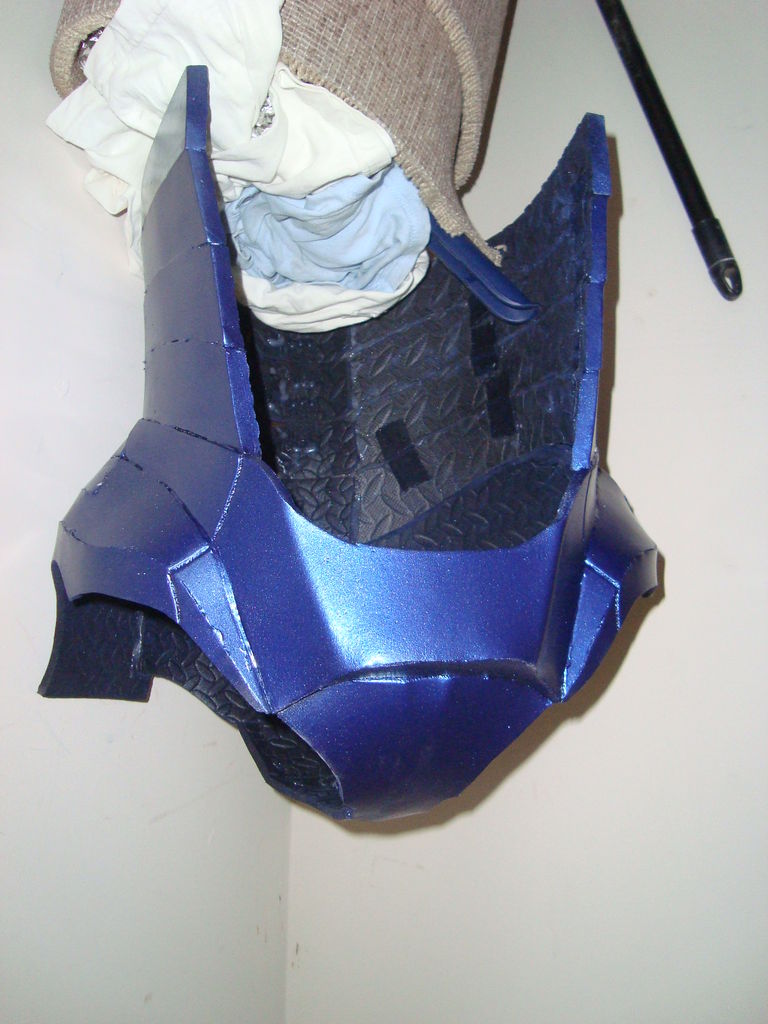
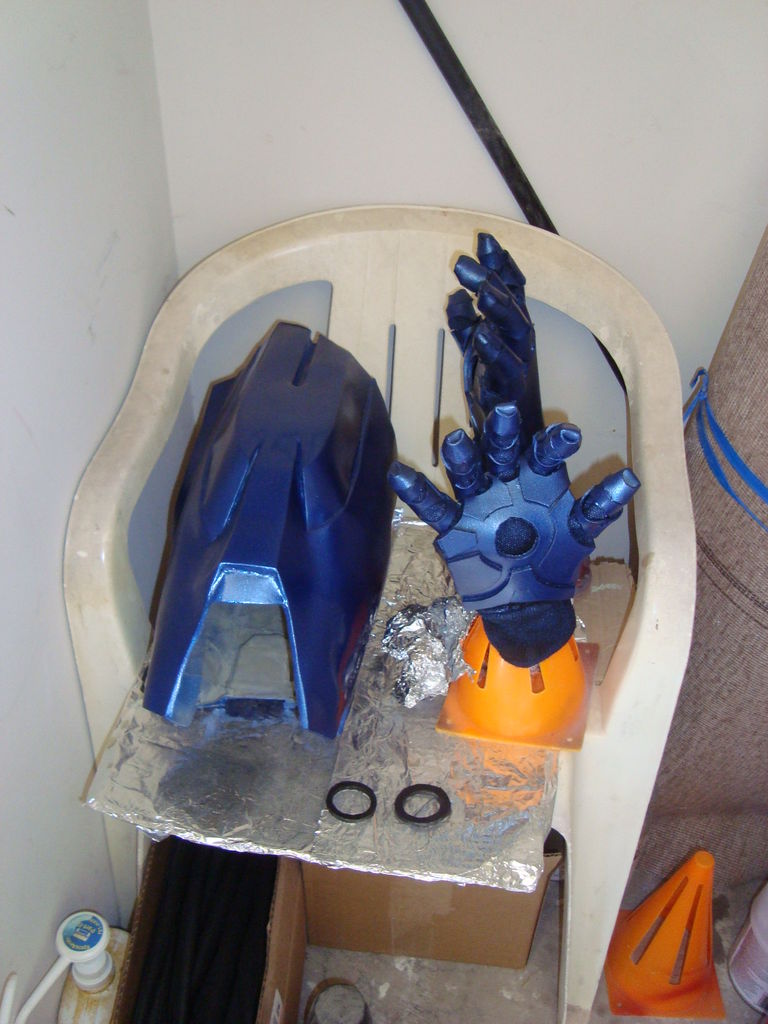
- Once the flexible pieces were build, I sealed the foam with a layer of modpodge, then 3 coats of black plastidip
- Automotive adhesion promoter was then applied in 3 coats, then the sprayed with color within10 minutes of the promoter drying
[caption id="attachment_73" align="alignnone" width="225"]
 Foam Torso Painted[/caption]
- After the color paint was dry, I used the Krylon gloss to give the pieces some shine
- I then weathered the pieces as previously described
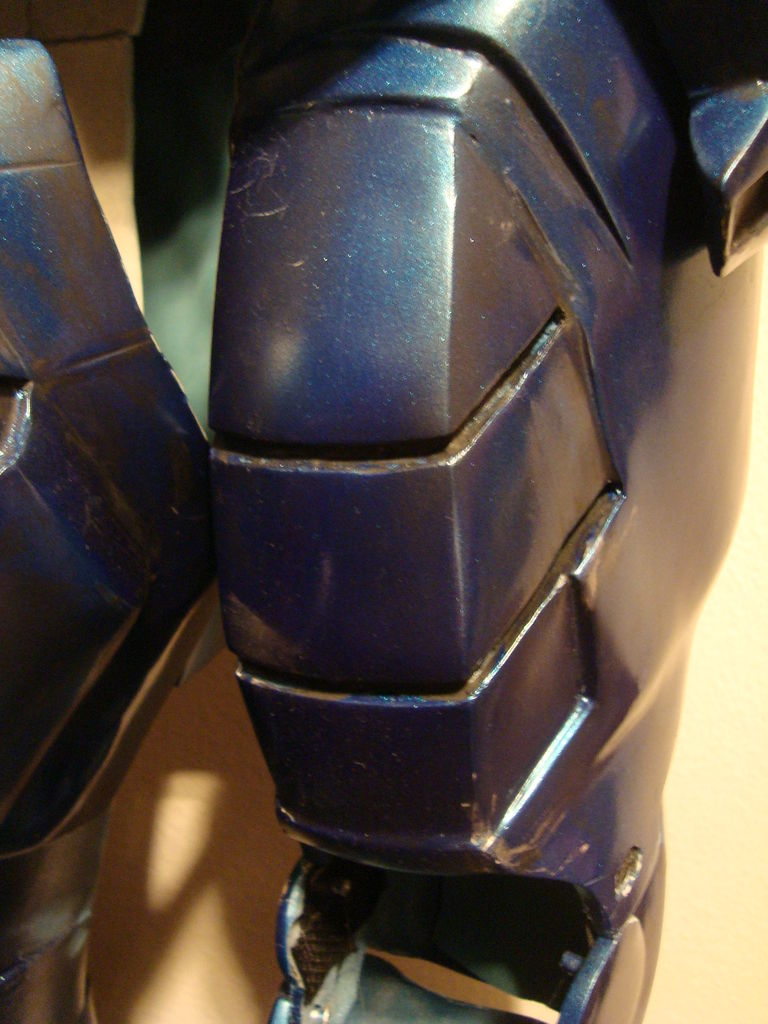
[caption id="attachment_70" align="alignnone" width="225"]
 Comparison
Thigh - Fiberglass
Gauntless - Foam[/caption]
---
Stage 6 - Mounting
[caption id="attachment_78" align="alignnone" width="502"]

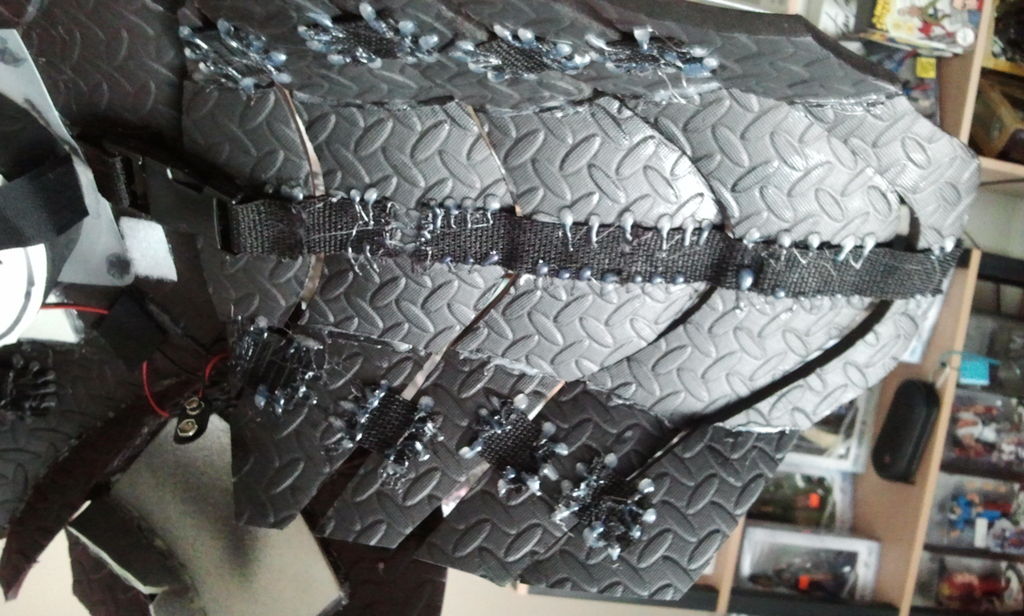
Strapping connecting chest and back[/caption]
Materials I used:
Steps:
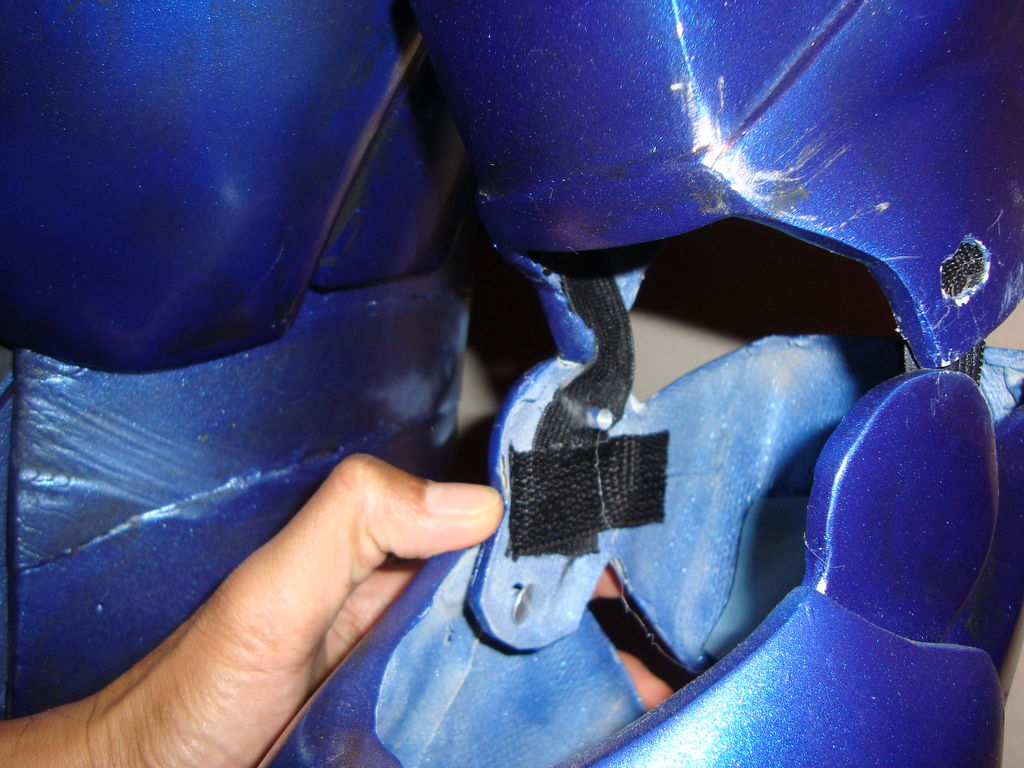
- For the flexible parts, I used a combination of Velcro and rare earth magnets
[caption id="attachment_79" align="alignnone" width="300"]
 Strapping behind abs[/caption]
- I used a dremel with a grinding stone attachments in order to create a space where the rare earth magnet can fit
[caption id="attachment_77" align="alignnone" width="225"]
 Magnets embedded in neck[/caption]
- I used hi temp hot glue in order to hold the magnet in place
- For the elbow joints, I hot glued elastic straps for more mobility
[caption id="attachment_75" align="alignnone" width="300"]
 Elastic connecting bicep and forearm[/caption]
- To join the shoulders to arms, I used hot glued backpack strapping to easily hook the pieces together. I did the same with the chest and back pieces.
- In order for my helmet to fit, I dremeled the rear piece out and then attached magnets to the inside with Apoxie Sculpt clay.
[caption id="attachment_76" align="alignnone" width="300"]
 Magnets on embedded on helmet piece[/caption]
---
Stage 7 - Electronics
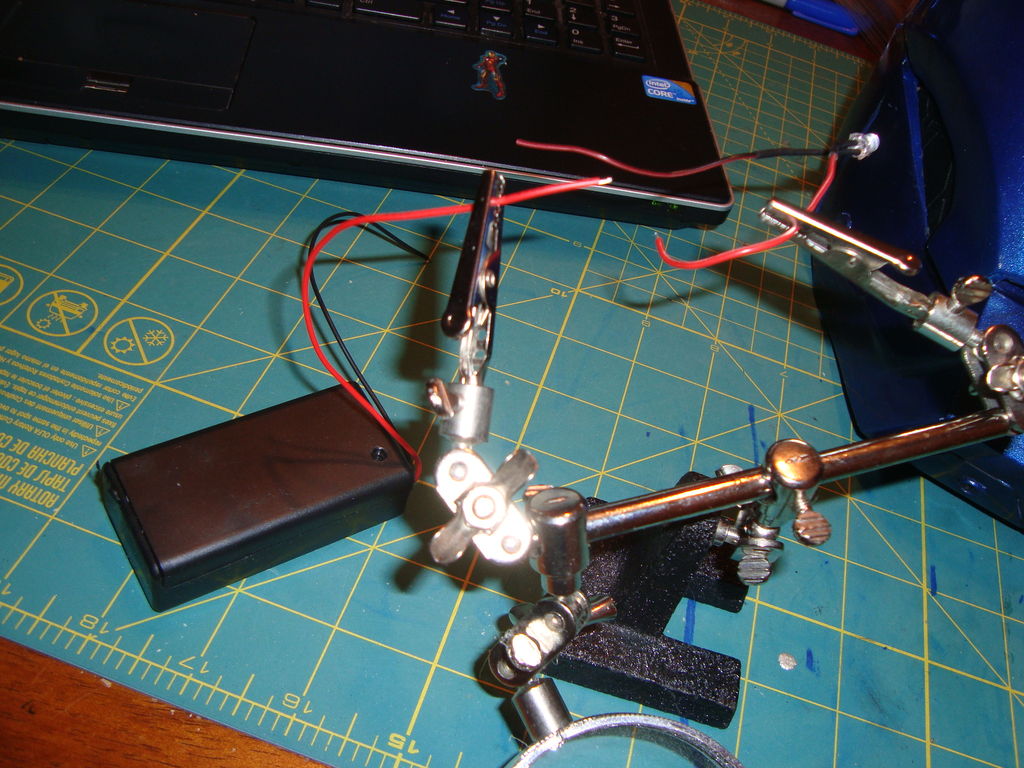
[caption id="attachment_80" align="alignnone" width="502"]

"Helping hands" holding LED and battery holder for soldering[/caption]
Materials I used for this stage:
Steps:
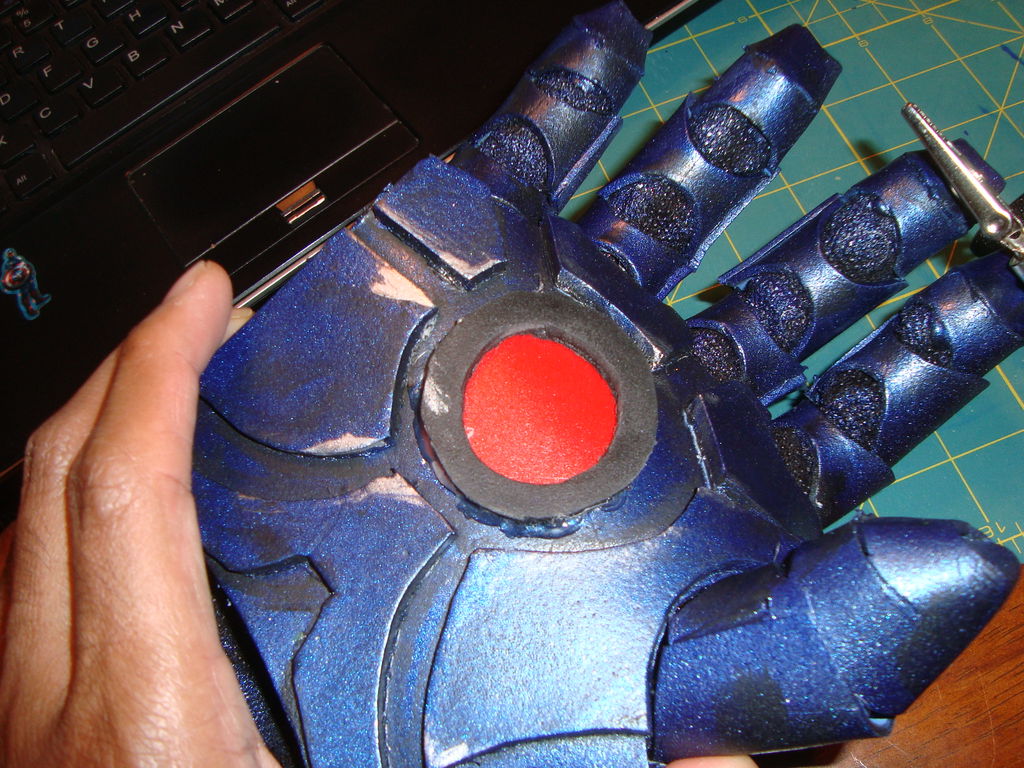
- For the gloves, I had a 9v battery holder which contained a switch. I wired and soldered this directly to my LEDs and hot glued the LEDs to the glove
- I cut out pieces of a mylar folder in order to diffuse the LED.
[caption id="attachment_82" align="alignnone" width="300"]
 Red mylar folder used to diffuse light on gauntlet[/caption]
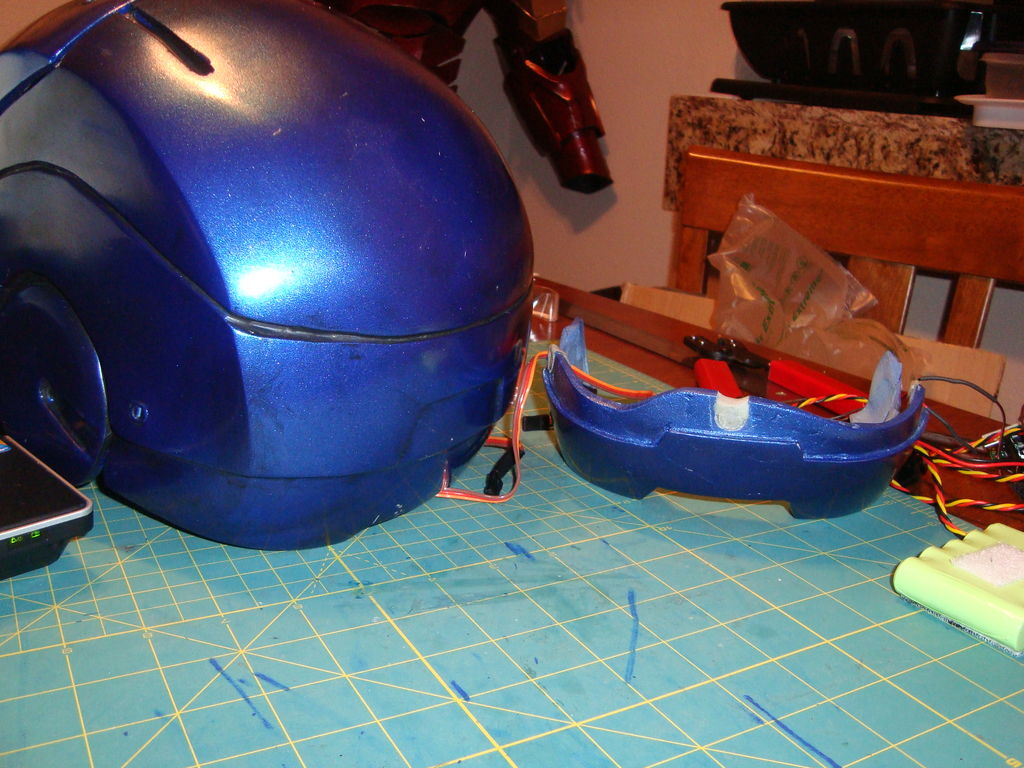
- For the eyes, I made eye boxes out of scrap foam and attached LEDs to the inside. More folder used to diffuse the light
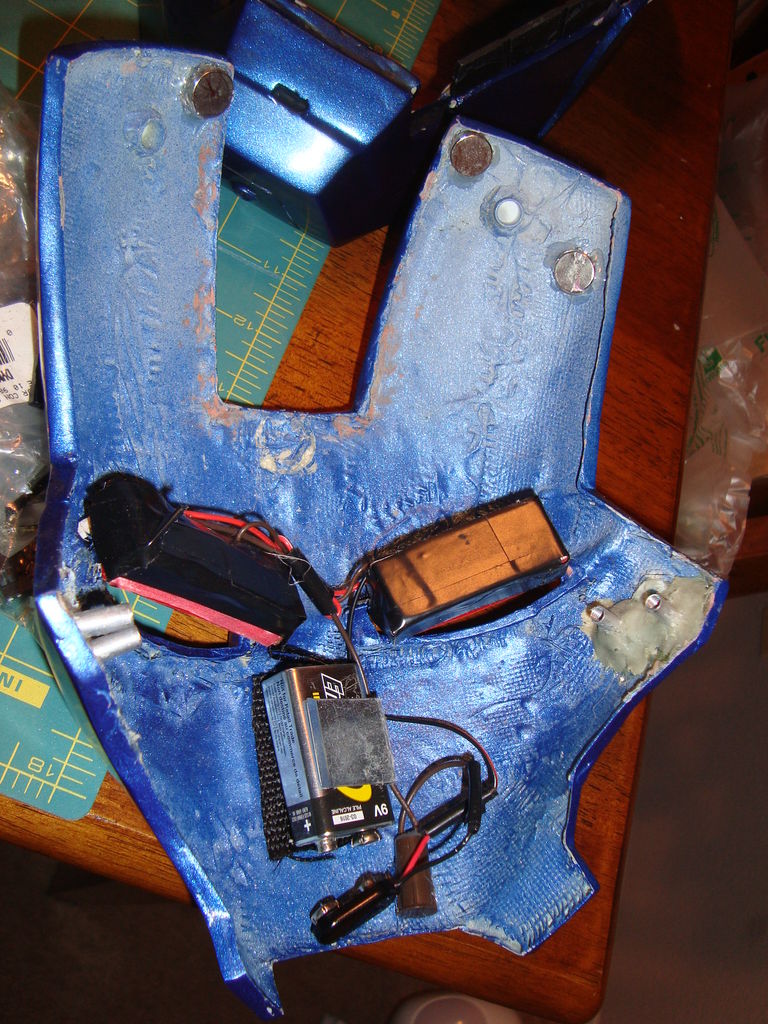
- LED eye boxes are then wired to a reed switch and a 9v battery holder. The reed switch closes the circuit when a magnetic field is present (facemask open, eyes off – facemask closed, eyes on)
[caption id="attachment_81" align="alignnone" width="225"]
 Wiring of the facemask eyes[/caption]
- For the chest piece, it was more or less the same with LEDs wired and more red folders to diffuse the light.
---
Stage 8 - Servos and hinges
Materials I used for this stage:
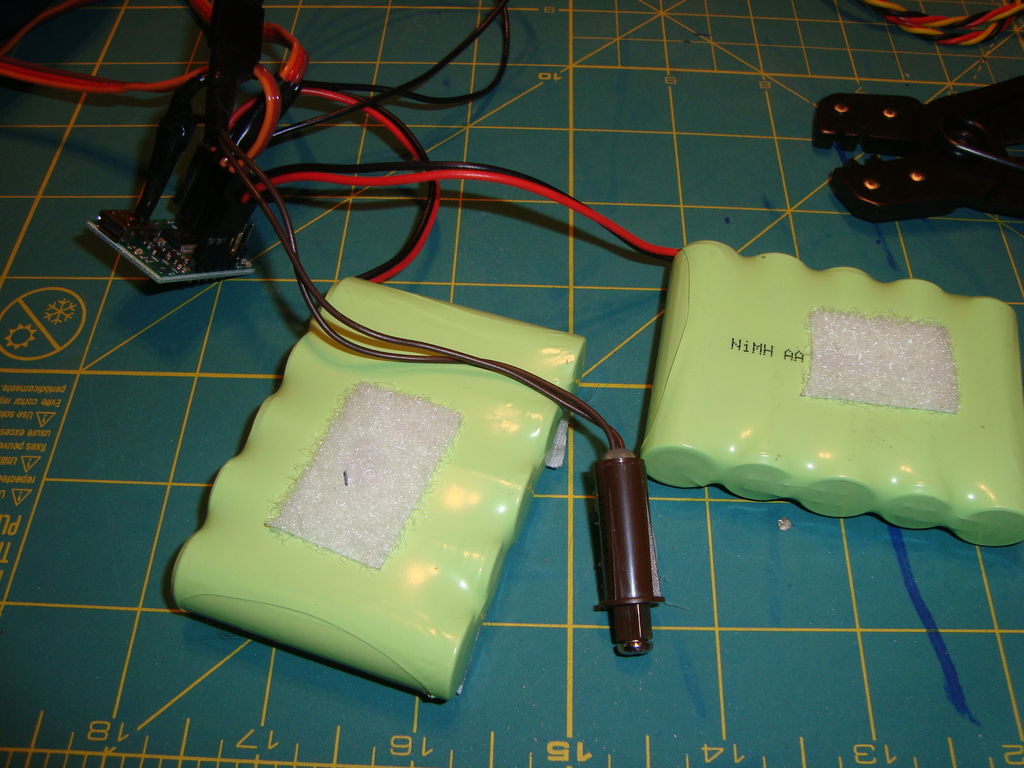
[caption id="attachment_83" align="alignnone" width="502"]

Batteries + switch + microcontroller[/caption]
Steps:
- I purchased hinge plans and installation guide from another Iron Man maker to save me the time of designing hinges, although there are a lot of other good sources on the hinge topic out there
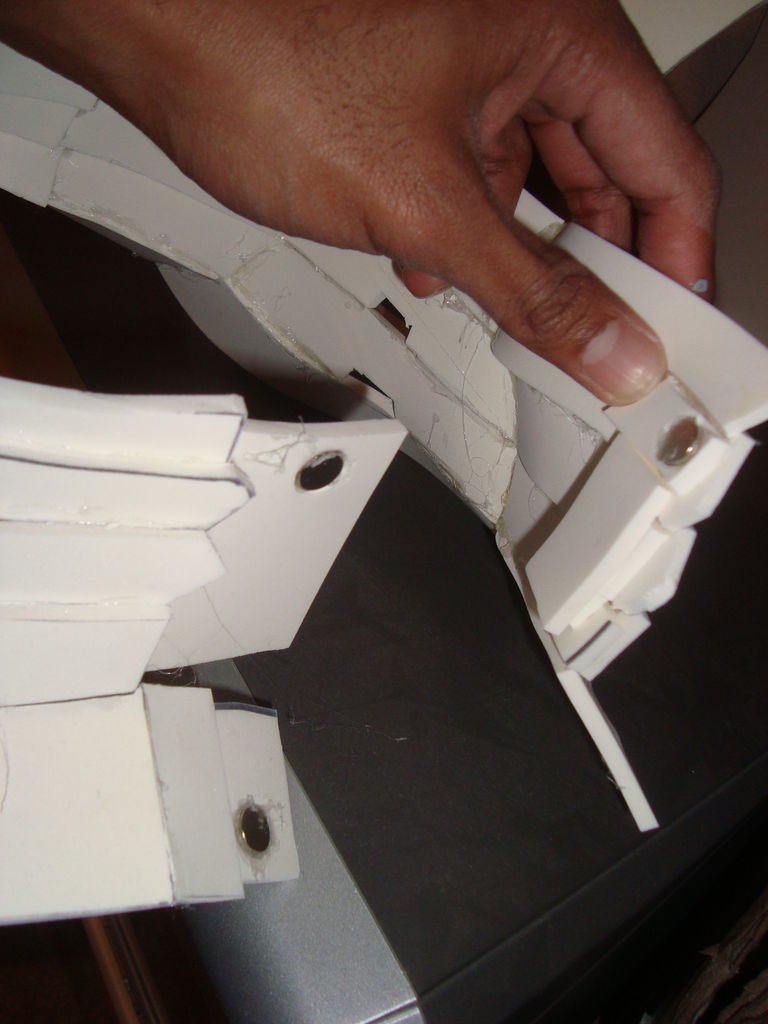
- I made the hinges out of sintra. I cut them to shape then sanded down the rough edges.
- I glued Chicago screws into place for the hinges, and then used Apoxie Sculpt to fixate them in place. I sanded down the excess as well.
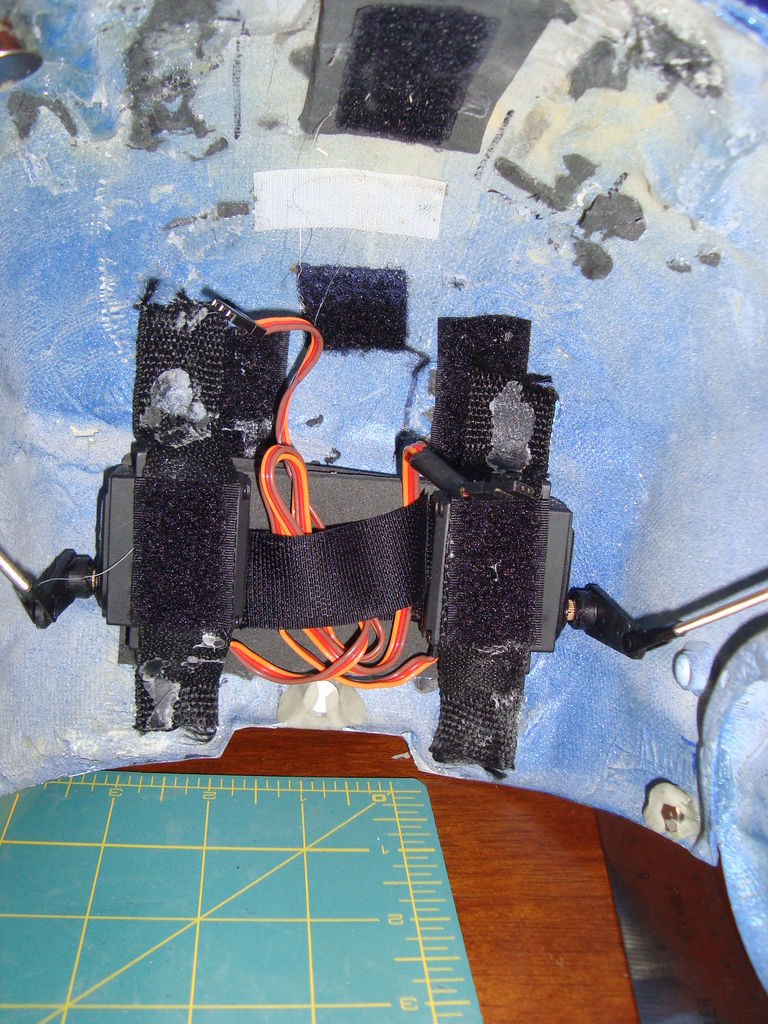
- One I had smooth movement of my faceplate, I began the installation of 2 servos in the helmet. I experimented with different positions of the servos, but ultimately the initial suggestion of having the servos in the back of the helmet became the best working. I hot glued them which seemed to hold fine.
[caption id="attachment_85" align="alignnone" width="225"]
 Servos mounted in helmet[/caption]
- I then measured and cut down pushrods to connect the servos to the hinges. I manually tested the motion in order to determine that the placement was satisfactory
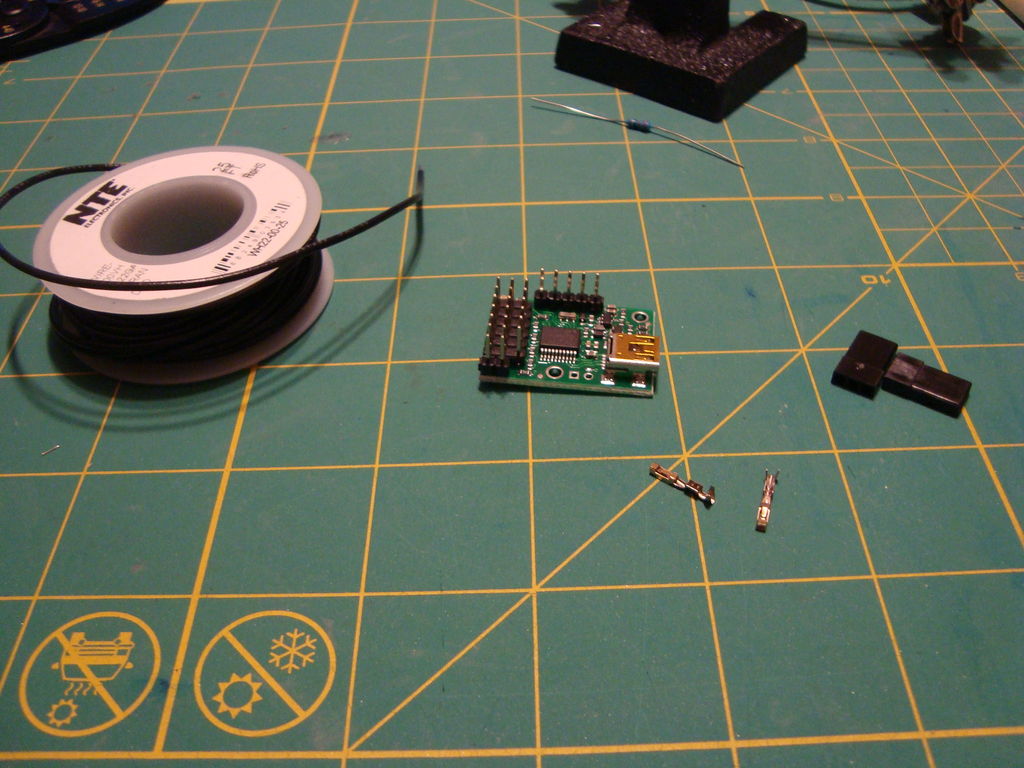
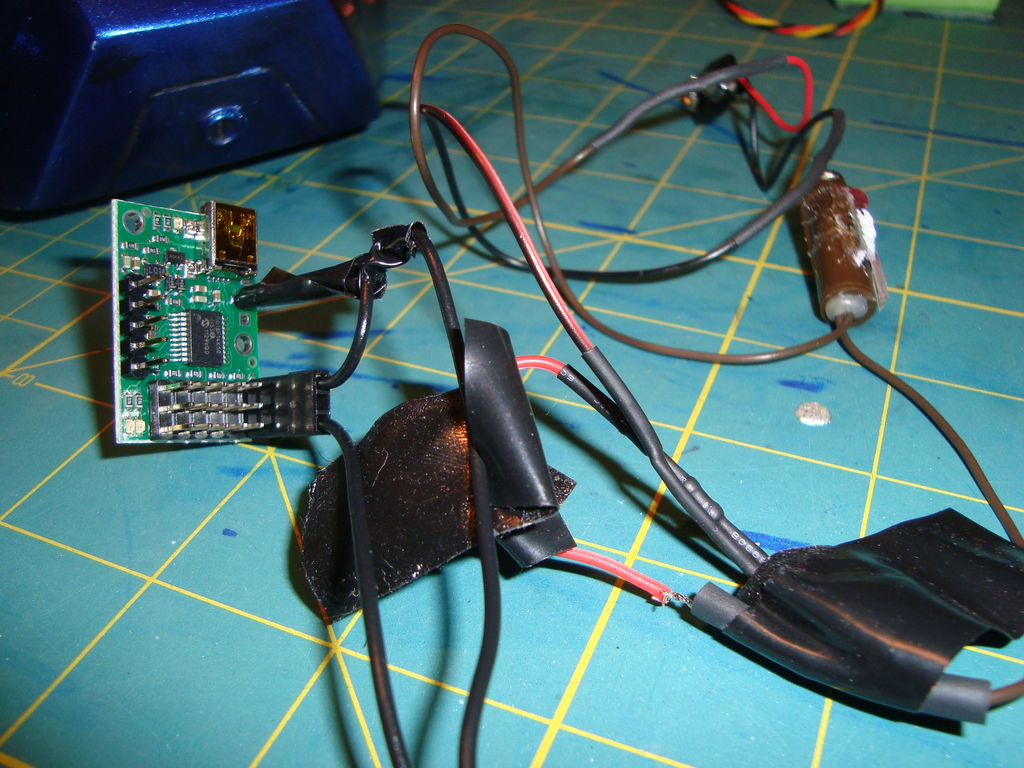
- I then followed the manual for the Micro Maestro microcontroller in order to wire a button to one of the chip’s channels. This will be the button that activates the servos
- I followed the example script in the manual in order to have a push of the button activate servo movement. Once understanding single servo movement, I modified the script to move both servos
[caption id="attachment_84" align="alignnone" width="300"]
 Micracontroller with wiring[/caption]
- After having both servos in motion, I carefully modified the script in order to obtain the proper servo movement for my helmet. I noticed there was a point where the servos would rotate the hinges too far, thus warping the helmet. Once I reached that point, I returned it to a point where it would not warp.
Here's a short video of servo action on my second helmet using the same method as the above:
---
Stage 9 - SUIT UP!
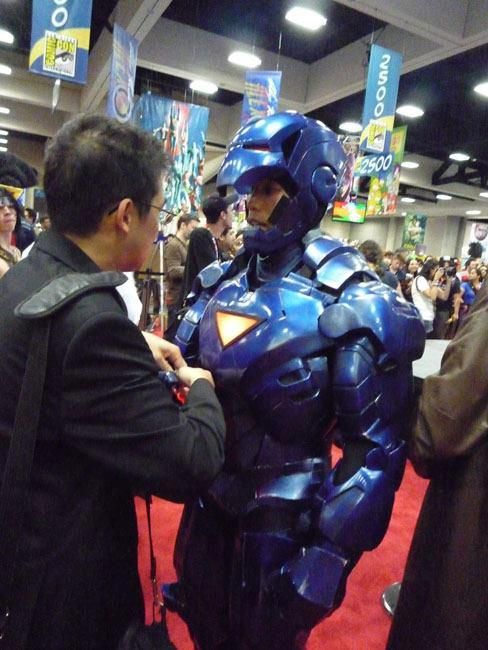
If you managed to get this far, suit up and have fun being Iron Man! Remember, patience is key for a big project like this! Questions? Feel free to comment and I will most likely make follow up posts in the future answering some of the most common inquiries.
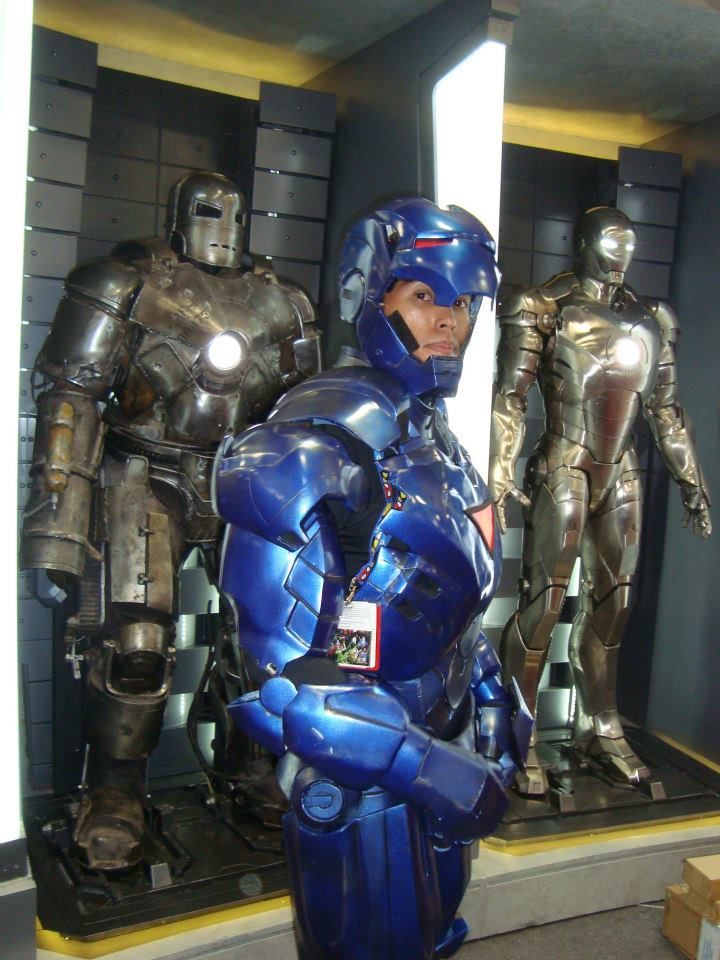
[caption id="attachment_89" align="alignleft" width="488"]

Suiting up at SDCC 2012

- Iron Man Hall of Armor[/caption]
 My Fiberglass/Foam Stealth Iron Man, Photos by comingsoon.net, Aaron Berkovich, and Nicole Ciaramella
 Pepakura Iron Man Helmet
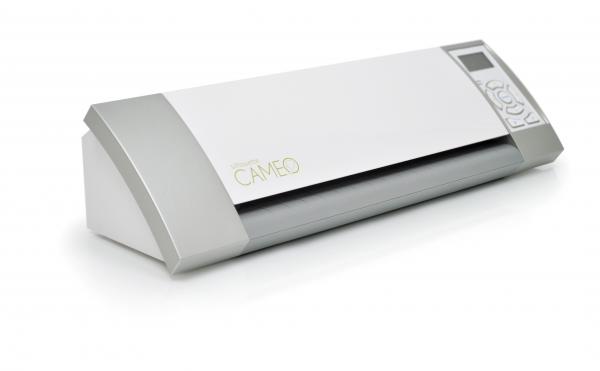
NOTE: The Silhoette SD is no longer being made. It's replacement is the Silhouette Cameo
Silhouette Cameo Craft Cutter[/caption] [caption id="attachment_41" align="alignnone" width="300"]
Silhouette HD Craft Cutter (CrafRobo)[/caption]

)
+ glue sticks
Screenshot of Pepakura Software[/caption]
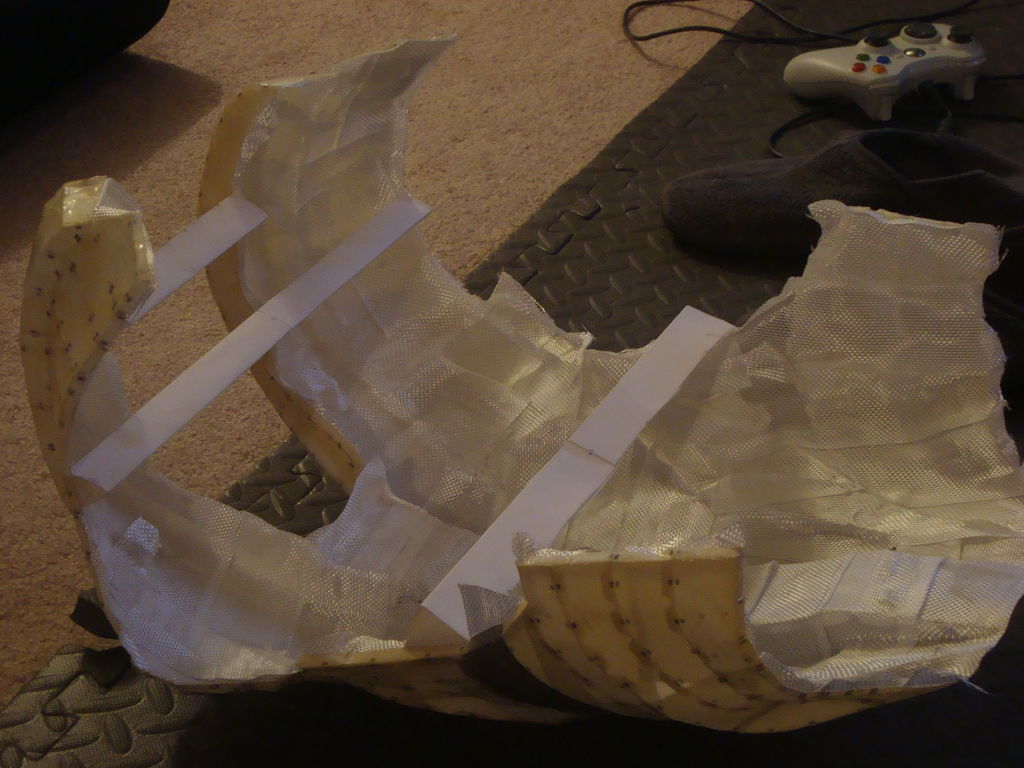 Fiberglassing the back[/caption]
Epoxy Resin[/caption]
(I found tape easier to use)
<strong(Don't go cheap on this! Safety is important!)
worked very well for me)
(You will go through a lot of these)

 Automotive Body Filler on Fiberglassed Helmet[/caption]
sanded very well compared to other brands)
(Made for easy clean up of body filler)
(I liked the metal ones better than plastic)
(Made it easier to sand than w/ traditional sanding blocks)


 Painted bicep - No clear coat[/caption]
for the "Stealth" paint scheme)
for detailing


 Foam abs and obliques[/caption]
works well. Stick with 1/4 thickness)
(for angled cuts)
(Takes about 6 cans for an entire suit)
is pricey but an excellent brand that adds some flex)
(This particular clear coat gave good flex)


 Strapping connecting chest and back[/caption]


 "Helping hands" holding LED and battery holder for soldering[/caption]


 Batteries + switch + microcontroller[/caption]
)
) [caption id="attachment_57" align="alignnone" width="300"]
Pololu 6 Channel Microcontroller[/caption]


 Suiting up at SDCC 2012